How to earn money from ms excel online?

How to earn money from ms excel online?
Excel templates can be made specifically for invoicing, project management, and budgeting, for example, and then sold online on websites like Etsy or Gumroad.

Develop Online Courses: If you have extensive Excel skills, you may teach others how to use Excel successfully by creating online courses on websites like Udemy, Teachable, or Coursera.

Provide Consulting Services: If you are an Excel specialist, you can provide consulting services to organisations or people who require assistance with particular Excel-related issues. Depending on your degree of competence, you can set a price for your consulting services.

Make YouTube videos:   

Online tutoring: If you wish to help students or working adults improve their Excel skills, you can provide online tutoring in Excel. To locate potential customers, use websites like TutorMe, Vedantu, or Chegg.

You can make YouTube tutorials on subjects connected to Excel and profit from sponsorships and ad income.

Services for virtual assistants: Many companies and business owners need help with data entry, report creation, and other Excel-related duties. You can provide clients with virtual assistance and bill them on an hourly or project basis.

Build Excel Add-ins: If you are skilled in programming, you may make add-ins for Excel that automate routine processes or offer extra functionality. On websites like the Microsoft Shop or Excel Campus, you may sell your add-ins.

Affiliate Marketing: By promoting Excel-related products like software, books, or online courses, you can profit from each transaction. To locate things to advertise, you can sign up for affiliate programmes like Amazon Associates, ClickBank, or ShareASale.

Provide Excel Training Workshops: You can host Excel training seminars in-person or online, and you can charge a fee for admission. You may advertise your classes using websites like Eventbrite or Meetup.

To earn money using Excel online, keep in mind that you must add value for your clients or consumers. You can establish a devoted clientele and expand your firm over time by providing high-quality services, goods, or training.

Keep in mind that using Excel to make money online involves a solid command of the software as well as a readiness to pick up new skills and adjust to new obstacles.

E-books: If you are well-versed in Excel, you may produce an e-book or how-to manual on a particular Excel subject and sell it on websites like Amazon Kindle Direct Publishing or Google Play. Create bespoke Excel macros or VBA solutions to automate Excel tasks for organisations or individuals if you have extensive programming skills. To get clients, you can advertise your skills on freelance platforms or build your own website.

Build Excel-based Games: You may use Excel to make straightforward games like simulations, tests, and puzzles that you can sell online. To promote your games, you can use websites like Game Jolt, Itch.io, or Steam.

Build Interactive ExcelDashboards and Reports: If you have experience with data analysis and visualisation, you may use Excel to generate interactive dashboards or reports that you can sell to organisations or private individuals. To display your work, you can utilise websites like Tableau, Power BI, or Excel Campus.

Create mobile apps based on Excel: You may make apps for mobile devices that utilise Excel as a backend to store and manage data. To create and distribute your apps, you can use platforms like AppSheet, Appy Pie, or BuildFire.

Keep in mind that Excel online income demands a combination of abilities, imagination, and persistence. Finding the correct niche and developing a reliable source of income from Excel-related work can be accomplished by determining your abilities and hobbies.

It is really possible to make money with Microsoft Excel in a few different ways.

Consulting: Getting help with Excel spreadsheet setup or optimization is a common need for businesses. You can provide consulting services to people or businesses if you have superior Excel skills.


Tutoring and Training: To help people learn how to use Excel efficiently, you can provide tutorials or training sessions. Online courses, webinars, or in-person workshops could be used for this.

Excel Templates: Make and market Excel templates for a range of uses, including project management, inventory monitoring, and budgeting. Well-thought-out, useful templates that help other users save time are in demand.

Freelancing: There are lots of gigs available on sites like Upwork, Freelancer, or Fiverr for Excel-related work like data entry, spreadsheet design, formula creation, etc. You may provide

Data analysis: Excel is frequently used in this process. If you are proficient in data analysis and visualization, you may give organizations with insights and data analysis services.

Automation: Companies frequently want assistance with using VBA (Visual Basic for Applications) or macros to automate repetitive Excel processes. You can build unique solutions to automate these processes for clients if you know programming.

Content Creation: You are able to produce and market Excel-related instructional materials, including blog entries, video tutorials, eBooks, and online courses.


These are just a few instances of how you can use Excel to make money. The secret is to utilize your proficiency with Excel to benefit others.

Financial Modeling: Forecasting, planning, and decision-making in business frequently call for the use of financial models. If you are proficient in Excel and finance, you can provide companies, small enterprises, and startups with financial modeling services.

Data Cleaning and Formatting: To prepare them for analysis, enormous datasets from numerous organizations must be cleaned, formatted, and arranged. You can use Excel to provide data cleaning services to businesses so they can keep accurate and useable data.

Customized Reports: Use Excel to create customized reports and dashboards that assist companies in tracking important indicators and visualizing their data. You can provide your expertise in creating customized reports that are suited to your clients' particular requirements.

Excel Add-ins: Create and market Excel macros or add-ins that increase the capabilities of Excel. These could include functionality designed specifically for particular industries or jobs, sophisticated analysis features, or automation tools.

Freelancing Markets: Look into freelancing markets like ExcelExperts.com or ExcelGuru.ca that are especially dedicated to Excel-related activities. These platforms link Excel specialists with customers who need help with different Excel tasks.

Training Materials for Excel: Make training resources and market them to people who want to get better in Excel, such as eBooks, online courses, video lessons, or instruction manuals. These resources can be sold on your own website or on online marketplaces such as Teachable or Udemy.

Excel-Based Business: Build a business around providing Excel-based solutions or services. This could involve developing custom Excel tools, offering Excel training programs, or providing consulting services to businesses seeking to optimize their use of Excel.

Excel Freelancer Networks: Join Excel-focused freelancer networks or communities where you can connect with other Excel professionals, collaborate on projects, and find potential clients or job opportunities.

Excel Support Services: Offer Excel support services to individuals or businesses experiencing challenges or issues with their Excel spreadsheets. This could involve troubleshooting errors, providing technical assistance, or offering advice on best practices.

These are additional avenues you can explore to monetize your Excel skills and expertise. Depending on your interests, strengths, and target market, you may find certain options more appealing than others.

Financial Modeling: If you have a background in finance or accounting, you can specialize in creating financial models using Excel. Businesses often require financial models for forecasting, budgeting, valuation, and investment analysis.

Custom Spreadsheet Development: Create customized Excel solutions tailored to the specific needs of businesses or individuals. This could involve building complex spreadsheet models, dashboards, or interactive tools.

Excel Add-ins: Develop and sell Excel add-ins or extensions that enhance the functionality of Excel. This could include tools for data manipulation, reporting, charting, or specialized analysis.

 Excel Training Materials: Produce and market instructional resources on Excel tips, tricks, and advanced techniques, such as eBooks, online courses, video tutorials, and training manuals.

Excel Freelance Marketplaces: Participate in niche forums or marketplaces where companies and individuals list projects involving Excel. This might be an excellent method of locating consumers who want particular Excel skills.

Provide specific commercial services that make use of Excel, such as inventory management, sales forecasting, financial planning and analysis, and data visualization.

Launching an Excel blog or YouTube channel: Create a blog or channel dedicated to providing Excel lessons, hints, and tricks. Via affiliate marketing, sponsored content, advertising, or the sale of premium courses or goods, you can make money off of your material.

Excel Software Development: You can create custom software programs that work with Excel or take advantage of its features if you know how to program. This could entail creating web apps, automation tools, or plugins.

These extra choices, which suit a range of interests and skill levels, broaden the range of chances to make money with Microsoft Excel.

That's how we have many or multiple options available onlline to earn money even by ms excel or any other platfrom it just we need to be available for doing had work with smartness and ofcourse we can earn good money online.

Even if we talk about youtubers, they also earning very good nowdays, bloggers also earning very good so it just that which way we go with, to earn and learn, learning will always be paying a good money so always be ready to learn and then earn easily.

Microsoft Excel Questions With Answers

Microsoft excel
Microsoft excel 

Question 1). What is Microsoft excel used for?

Answer: Excel is an impressive magical tool to calculate any data whether is small or big. It has many features to handle the database in numbers and for text content as well.

Let's do a small practice like if we have small data or content to put in an excel sheet to calculate or work on, though it provides cells, rows, and columns to add more & more information in it as per our requirements.

Here we can see an image of what the same how does look like.


Once we open an MS excel it shows so many cells and rows, after seeing it we might get excited or confused as well like how we going to use it but there is nothing to worry about it.

Let’s learn the basics first about it so we will not get any issues while we work on it because if we get complete knowledge about it, we can enjoy working on it rather than be disturbed.


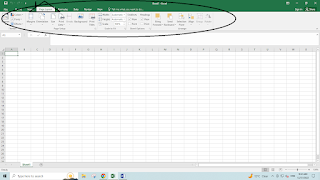
So let s first its interface below in an image.

This picture clearly shows some tabs at just the top of the image. This image that we can see above it has some tabs and we can see these tabs mentioned with names below to quite understand what exactly they are.

1). FILE

2). HOME

3). INSERT

4). PAGE LAYOUT

5). FORMULAS

6). DATA

7). REVIEW

8). VIEW

Now here we have to understand that it depends on us like how many tabs we want in total however currently we can see that we have eight tabs above in the image. We can make or add more tabs through the developer tab.

At this moment, let us check another page below for better and good learning.                                            


2ndstep is now we see again some options in the image above that we have here.

1). INFO

2). SAVE

3). SAVE US

4). PRINT

5). SHARE

6). EXPORT

7). PUBLISH

8). CLOSE

9). ACCOUNT

9). OPTIONS

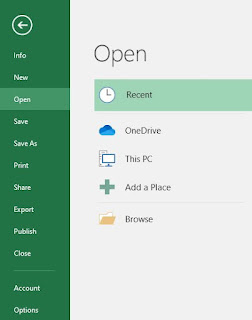
 On the right-hand side, we see these options below in the image


1). RECENT

2). OneDrive

3). This PC

4). Add a Place

5). Browse

The fourth step is straightforward here, let's see an image below for the same.

This sheet has more than 1 million cells or rows, which is quite good or impressive, and we need to appreciate Microsoft for making such a helpful tool for users.

In the excel sheet in left side corner, we can see here we have numbers that start from 1stto 1048576 and on top, it starts in alphabets from “A” to “XFD”

That is a basic thing about an excel sheet now if we want to add any data to the sheet, we have columns and rows in it and can customize it. 

If we want to create a workbook or excel then we can do this below that we did below.

HOME


In the HOME tab, we have these many options that we can use to customize our data as per our needs. we can put our data in colour and filters or whatever we want from this HOME tab and can apply these settings to make our data better to understand and attractive too.

INSERT

We will learn here few things from this tab, which is quite simple and lovely to know.

PAGE LAYOUT

In-Page Layout

We have several options or features to use, Print command also comes under this Page Layout tab and that is also important because sometimes we need to take a print of the workbook so in that case, we can use it.

FORMULAS

In formulas, we have some functions for basically financial, text, logic, math, etc. Let’s check the image below.


DATA

In the same way, we can see the next tab named DATA   and which has many functions to use like finding duplicate values etc.

REVIEW

In this tab, we get these features as mentioned below in the image. Once we going to start working on these options, we will get to know the importance of these features and understand them too.

VIEW

In this tab, we have some features like page break and zoom options and the most important is Macros. Macro is one of the most powerful tools in MS excel and how do we use it, let s understand that now but first we see these options in the image below.

Macro:- This tool we use to make our work burden as slow as. If we do any repeated task in excel again and again then we can use this tool to record the session of the excel workbook and play it. It will complete the job, as we need as per our choice.  It works well and it’s very helpful when we have too many repeating tasks to handle in an excel workbook.

Though we have more to learn so lets discuss what we can learn from it

Basic Functions and Formulas: Data manipulation and analysis require an understanding of basic formula writing as well as fundamental functions like SUM, AVERAGE, MAX, and MIN.

Data formatting: You may improve the readability and visual appeal of your spreadsheets by learning how to properly format cells, rows, and columns.

Data Validation: By putting data validation rules into practice, errors are decreased and data accuracy is ensured by making sure that the data entered into cells satisfies predetermined requirements.

Conditional Formatting: This technique makes it simpler to spot trends and outliers in your data by enabling you to dynamically format cells according to predetermined criteria.

Advanced Functions: For more complex data manipulation and analysis, functions like IF statements, nested functions, VLOOKUP, HLOOKUP, INDEX-MATCH, and others are frequently utilized.

Data Analysis Tools: For carrying out intricate what-if analyses and optimization, Excel comes with built-in data analysis tools like Goal Seek, Solver, and Scenario Manager.

What-If analysis with data tables: Data tables let you investigate various situations by changing input values and seeing how those changes affect the output values.

Macros and Visual Basic for Applications (VBA): These two tools let you personalize Excel's features and automate tedious operations. Your productivity can skyrocket if you can create and run macros.

Data Import and Export: Working with a variety of datasets requires the ability to import data from outside sources and export data to different forms (such as CSV or text files).

Excel provides tools for recording changes, sharing workbooks, and password-protecting worksheets and workbooks in order to facilitate collaboration with others.

Database Functions: To execute computations on data contained in Excel tables or external databases, Excel has database functions including DSUM, DCOUNT, DAVERAGE, and DGET.

Excel Tips and Tricks: You may work more quickly and effectively in Excel by learning different shortcuts, productivity tactics, and tips and tricks.

Data Transformation and Cleaning: Two crucial processes in getting data ready for analysis are transformation and cleaning. Excel has functions for data transformation, duplication removal, filtering, and sorting.

Using Power Query for Data Analysis: Power Query is an effective tool for integrating, cleaning, and transforming data. Your data preparation process can be streamlined by becoming proficient with Power Query.

Power Pivot for Data Analysis: With Power Pivot, you can use big datasets to do sophisticated data analysis and build data models. Gaining knowledge of Power Pivot will enable you to create reports and analyses that are more complex.

Excel Tables: Excel tables offer a methodical approach to data organization and analysis. Sorting, filtering, and referencing data are just a few of the chores that may be made easier with an understanding of Excel tables.

Array formulae: Using array formulae, you may compute on data arrays. Gaining proficiency with array formulae will enable you to use Excel for sophisticated computations and problem-solving.

Excel's latest feature, dynamic arrays, lets formulas automatically spill over neighboring cells and produce multiple values. Comprehending dynamic arrays can enhance spreadsheet productivity by making formula writing simpler.

Excel Add-ins: By adding new features and tools, Excel add-ins increase the usefulness of Excel. Gaining proficiency in installing and utilizing Excel add-ins will increase your productivity and broaden Excel's features.

Techniques for Data Visualization: Excel has a number of tools for data visualization, such as extensive chart customisation choices, conditional formatting icons, and sparklines. You can convey findings more effectively if you know how to visualize data well.

Financial analysis tasks including financial modeling, valuation, and investment analysis are frequently performed in Excel. Acquiring the skill of using Excel for financial analysis might lead to career chances in finance.

Excel for Project Management: Gantt chart generation, resource planning, and task tracking are just a few of the project management responsibilities that Excel can handle. You can handle jobs and projects more skillfully if you know how to utilize Excel for project management.

Statistical Analysis with Excel: Excel comes with tools and built-in statistical functions to help with basic statistical analysis. Acquiring proficiency in Excel for statistical analysis can prove beneficial in domains including quality assurance, data science, and research.

Excel for Business Intelligence (BI): Excel is a useful tool for business intelligence tasks like dashboard design, interactive reporting, and data visualization. Businesses can utilize Excel for BI to get insights from their data and make wise decisions by knowing how to use it.

Excel for Academic and Educational Objectives: Excel is frequently used for tasks like data analysis, modeling, and classroom exercises in academic and educational environments. Learning Excel may help researchers, teachers, and students in a variety of professions.

These extra topics offer a more thorough grasp of the several uses for Excel by delving further into particular aspects of its functionality and application.

Microsoft Excel is like magic power that we got from Microsoft INC.

We can learn more about it and can learn all these basic functions practically.  Many people are teaching MS excel online and offline and on YouTube and anyone can take free classes on YouTube.


Some of them are providing paid classes also but this different thing so if anyone wants to learn for free, they can also do it from YouTube.

How to convert numbers into words.

How to convert numbers into words.


Here is the explanation to convert the numbers into words with images or screenshots.

Question: How can we convert any numeric number into words in MS excel?

Answer:  There is no option yet to use this thing as a function or formula in MS Excel, However, we have to install this function as a custom function ourselves in Microsoft excel. So how are we going to do it, let us explore here now?

NOTE: We have to do it through macro code then we will be able to install this custom function in MS excel.

Let’s start now.

Firstly we have to open an MS Excel spreadsheet and press 2 keys together at the same time (ALT+F11)

Then it will open up a new dialogue box under the name “Microsoft Visual Basic For Applications

Let us check this dialogue box in the image here first below.


Now we can clearly see this image and under the INSERT button, we have to find out MODULE and click on that. Once we click on that then there is a small empty box will open up, also we can see that box in the image above.

Here we have to paste a “MACRO CODE” which will create a custom function or formula in our spreadsheet we will be able to use this function easily which will help us to convert any numeric number into words in MS excel.

NOTE: This macro code is available here which could be easily taken. 

(https://drive.google.com/file/d/1ZWN4SHgm973jUFGVYEjFDcN1_CwCbQg8/view)

After putting this macro code here in the empty box then we can minimize it and simply go to our actual excel sheet that we opened first of all when we started. Here we have to go to the “FILE” menu and click “SAVE AS” and save this file.

Make sure we will save this file under the “EXCEL MACRO ENABLED WORDBOOK with any desired name.

Now we saved this file and will open this again and type this formula or function which will help us to convert numbers into words.

This function is as follows as below. =SpellNumber(SelectedNumber’sCell)

Let us check it here In the attached screenshot below.

So now we have seen here, this has been solved easily but here again, we will explore it like how we applied this function in MS excel after putting this “MACRO CODE

Question: How we can use this customer function?

Answer: Now we can open an MS Excel spreadsheet and let's suppose we put a number like any number like “450” in “E8 cell” as we can check in the image also.

In another cell which is “F8”, we have to apply this function so let us start now. Let us put a =SpellNumber(E8) and hit enter. That is it. If we do apply this custom function now then we will have numbers into words.

Here we have seen this was quite easy to make a custom function in MS excel through a “MACRO CODE”.

Nowadays this feature is the most helpful and required in all fields where we work in excel. Along with this, we can also explore our knowledge with other functions which are mostly used as features such as Vlookup, PivotTable, etc.

Vlookup - In its least complex structure, the VLOOKUP work says: =VLOOKUP(What you need to look into, where you need to search for it, the segment number in the range containing the incentive to restore, return an Approximate or Exact match – demonstrated as 1/TRUE, or 0/FALSE).

Hlookup - HLOOKUP represents Horizontal Lookup and can be utilized to recover data from a table via scanning a line for the coordinating information and submitting from the comparing part. While VLOOKUP looks for the incentive in a section, HLOOKUP looks for the incentive in succession.

Trim Function - The Microsoft Excel TRIM capacity restores a booking incentive with the main and following spaces eliminated. You can likewise utilize the TRIM capacity to eliminate unused spaces between words in a string. The TRIM capacity is a basic capacity in Excel that is ordered as a String/Text Function.

Sum Function - The Microsoft Excel SUM work includes all numbers in the scope of cells and returns the outcome. The SUM work is a perfect capacity in Excel that is ordered as a Math/Trig Function. It tends to be utilized as a worksheet work (WS) in Excel.

Data Validation Function - You can use data validation to secure such data or the features that customers go into a cell. One of the most broadly considered data validation uses is to make a drop-down summary.

Conditional Formatting - 

1). First, you need to select a cell where you want to put a condition or apply a conditional formula. 

2). Click the conditional formatting tab above and you will find many ways to use it.

3). Here you have all options like Highlight cell rule, Top-bottom rules, etc. 

4). You can use any conditional formatting rule from the options we have here.

5). Here you can also use a new rule for text functions, let's suppose you want to put any condition on the text then it also can be done easily here by using this conditional formatting function. You have also an option to highlight any numbers or texts that you have in cells.

6). Even you can also put any condition here by using it on dates as well.

7). Here you also have the option to select the duplicate values which can be coloured or highlighted easily by using this function rule of conditional formatting. 

8) You can use this function in multiple ways as it has many features, The topmost features it has that we are discussing here such as highlighting duplicate values, values in percentages, values from top to bottom, values from bottom to top, selecting texts alphabetically or etc.


There are many things to learn in ms excel but we need to explore our knowledge base about it if we want then we have multiple functions to use as features or functions in ms excel.

Exporting data from excel to word

Data Transfer From Excel To Microsoft word- MS Word is amazing to use in terms of making any table or handling any data in it but what about if we want to transfer any data from excel to word? of course we have many ways to do it. So here we will explore how can we transfer data from excel to word without any software. we can simply transfer any excel data to word.


Data Transfer:- Nowadays people think that data transfer is a little tough task because they are not aware of it that how to do it however some people do that easily if they have knowledge about it. Now the challenge is, How can we go ahead and transfer this data or any work data from ms excel to word? For this, there is an absolute full explanation below about it. let us go through it now.

Also, it needs words in the way that if we want to make any changes in ms word, that change must be updated automatically in Microsoft excel also. 

Process:- First of all to transfer any data from ms excel to ms word, we need to open our excel spreadsheet where the data we have and also open ms word there we need to transfer the data then copy all data and then go to ms word file and do click paste special

Once this option gets clicked we will have this page coming up. look at below the image.


Exporting data from excel to word.
Data Transfer from MS Excel to MS Word

But make sure both files must be saved already because it does not perform or work in unsaved files. so before doing it, please check both files (excel and word) must be saved already then it will only work. 

Now please check the image carefully. here we will click this option that we have on the left side of this image named PASTE LINK. After clicking it now again we got a few options in the box right-hand side which you easily see in the image below.


Exporting data from excel to word
Data Transfer from excel to word.


Now per the image, we have above, there are 2 options to save this file.

1). PASTE

2). PASTE THE LINK

we have these 2 options to perform in different ways for different conditions.

Nut Now we have to use the 2nd option which is PASTE LINK once we click this button then we get again these many options like:- 

1). Microsoft excel worksheet object - The Worksheet object is an individual from the Worksheet selection. The Worksheets selection contains all the Worksheet objects in an exercise manual.

2). Formatted text (RTF) - Windows Metafile (WMF) is a picture document design initially intended for Microsoft Windows during the 1990s. The first Windows Metafile design was not gadget autonomous (however could be made all the more so with arrangement headers) and may contain both vector illustrations and bitmap parts. It acts likewise to SVG documents. WMF records were later supplanted by Enhanced Metafiles (EMF documents) which accommodated gadget autonomy.

3). Unformatted Text - If we copy any file from word to any other word document then it might raise an issue then simply use PASTE SPECIAL and click this option to solve.

4). Pictures (Windows Metafiles) - It stands for an image file format that was basically invented by Microsoft windows in 1990.

5). Bitmap - Bitmap works like a memory organization that stores digital images.

6). Word Hyperlink - it can be added to any picture.

7). HTML Format - It stands for HyperText Markup Language. 

8). Unformatted Unicode text - It keeps the content as same in only text format. let support if you need to copy something in text format and want to paste that somewhere so we can select this option in PASTE SPECIAL and it will keep the only text as in content.

Here we have to select this particular option Microsoft Excel Worksheet Object and now hit OK. Now you will see in the video that we have transferred the data from ms excel to ms word successfully. Now the question is what is the benefit of it? 

Question:- Do we have to click only that option Microsoft Excel Worksheet Object only?

Answer:- Yes. We have to click only this option which is Microsoft Excel Worksheet Object and we have done the same here too. Because now whatever changes would be made in that ms excel file those changes will automatically be updated thereby click the update link option. 

this option will come on on ms word file document by doing the right click of the mouse and selecting the option update link or file and changes would be updated successfully.


That s all now we have learned how to transfer the data from ms excel to ms word. it has the only benefit that changes also would be made in that MS word made if any were done in the previous ms excel file.

The other features also we have which we have seen above. we can use these features for different scenarios. 

1). Microsoft excel worksheet object - A Worksheet is a collection of cells composed in rows and columns. Every worksheet contains 1048576 lines and 16384 segments and fills in as a big size of the table that permits you to arrange data. Commonly, an exercise manual contains a few worksheets with related substances and just each of the worksheets is dynamic in turn.

2). Formatted text (RTF) - RTF stands for Rich Texts Format. we use this file for creating formatted text files.

3). Unformatted Text - This is a file that does not have a proper format.

4). Pictures (Windows Metafiles)- Windows Metafile ( WMF) is a picture document design initially intended for Microsoft Windows during the 1990s. The first Windows Metafile design was not gadget-independent (however could be made all the more so with arrangement headers) and may contain both vector illustrations and bitmap parts. It acts likewise to SVG documents. 

WMF records were later supplanted by Enhanced Metafiles (EMF documents) which accommodated gadgets independently.

5). Bitmap - 

6). Word Hyperlink

7). HTML Format

8). Unformatted Unicode text


How to create feedback form using Google apps.

How to Create feedback form using Google apps.
Feedback Form


Google Forms – It is a kind of tool which helps us to get information from users online in an easy way, it could be used on Google spreadsheets too which is progressively useful to get to any gathered information or data effectively. Clients can put their data, for example, pictures, sound, recordings, and documents in inaccessible arrangements like PDF, MS Word, and so on. 


Requirements

The first requirement is to create this feedback or survey form or collect any kind of information from users or anyone through Google a Google account is a must. We simply have to create first all a G-mail account which we usually use for accessing emails and any other documents for sharing or any professional work.

Preview

Before sending it to someone or after creating this form, we have a choice to check it as a preview on the top right corner, and we can make some changes in settings as per our choice like if we want to give access or option to make changes after submitting this form then we can give that to the user who will be receiving it.


How to Create feedback form using Google apps.
Feedback Form


Google Drive

Once we click this DRIVE then we will have these options appeared such as Google Docs, Google Slides, Google Apps, and many more. For better understanding let us check the images below and that what all options would be found hereafter by clicking this Google Drive.


How to Create feedback form using Google apps.
Google Forms

So after clicking this MORE we will have Google Forms in again we have 2 options Blank form and from a template so let us click this 1st option for creating this form.
All Ready Now

Presently we have a stage where we can create any feedback form online and further can go and make some changes too which is called the edit tab.

How to Create feedback form using Google apps.
Survey Forms

Themes Changes

So now here we can simply go and create this Google online format free of cost and collect any information from anybody online.

So now, for example, we made this form by the name of audici and just below it we can start to make this form without any issues, We wrote the first option as Name and 2nd one could be created in that same way by clicking that + symbol.


Now as we can see in this image above that we have many options to use. Look at the right corner at the top, we got 3 dots that we can click and find many more features in it. Let us go through them first.


1). Undo

2). Make a copy

3). Move to bin

4). Get prefilled link

5). Print

6). Add Collaborators

7). Script editor

8). Add-ons

9). Preferences

Undo – Let's suppose we did some work in this form and we check that later and decide that the last was better than the one that we made now, so in this case, we can Click “undo” and this will again make changes in the forms that we had before, means we will have the same work that we wanted to get back.

Make a copy – This option is a good one here in that we get to make a copy of this form which means we have the option to save this form as a copy in our drive or in anywhere on the computer. Look at the image below.


Here we have these options to perform like

1). My Drive

2). Computer

3). Shared with me

4). Starred 

That we can use them to save or make a copy in with these options.

Move to the bin – If we click this button will delete the work we did in the form but then we get another screen also which will show 2 options as 

1). TAKE OUT OF BIN

2). GO TO THE FORMS HOME SCREEN.

 As we can understand with their names that all we can do to use these options so we can use these options to delete the form but still, we have a choice to come out of the bin or go to the forms home screen.

Get pre-filled link – This link can be used by any other user, He or she can click this link to check this form online.

Print -  This button gives us the option to take a print of this form from here but make sure the printer must be attached to the computer to take a print otherwise this feature will not work at all.

Add collaborators – This option is amazing here, it means the form we are making, can be shared by other users also at the same time with their emails and links, we have also an option to make them an editor which means they can also make changes in this form as we are giving them permission to work or edit this form on. Let us check in the picture below that what image will appear after clicking this Add collaborates.


In this image, we can see in the right top corner a symbol which can be used as a function for settings. If we click this button setting then it shows us the next screen where get this image. Check it up first below.

It clearly shows that the editors we made can change the permissions and share it with others, People who can see this form, can download this form and take prints.


Script editor – This feature is a development platform that makes it fast and better in n easy way. This option is for coding editing that will be on the Google server.

Add-ons – Google provides many add-ons that can work with forms here 

1). G-suite,

2). Form notifications,

3). Form ranger and etc. 

Preference – This button works as a setting in the form that can allow collecting email addresses and etc.

We can create this kind of form for getting any information from any user online. When users will send this form back to us after filling it then it will have appeared in only the same Gmail account G DRIVE as RESPONSE which we already have with QUESTION in the top centre.