Showing posts with label Advanced Excel functions. Show all posts

Microsoft Excel Questions With Answers

Microsoft excel
Microsoft excel 

Question 1). What is Microsoft excel used for?

Answer: Excel is an impressive magical tool to calculate any data whether is small or big. It has many features to handle the database in numbers and for text content as well.

Let's do a small practice like if we have small data or content to put in an excel sheet to calculate or work on, though it provides cells, rows, and columns to add more & more information in it as per our requirements.

Here we can see an image of what the same how does look like.


Once we open an MS excel it shows so many cells and rows, after seeing it we might get excited or confused as well like how we going to use it but there is nothing to worry about it.

Let’s learn the basics first about it so we will not get any issues while we work on it because if we get complete knowledge about it, we can enjoy working on it rather than be disturbed.


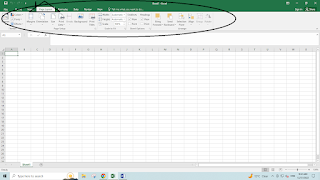
So let s first its interface below in an image.

This picture clearly shows some tabs at just the top of the image. This image that we can see above it has some tabs and we can see these tabs mentioned with names below to quite understand what exactly they are.

1). FILE

2). HOME

3). INSERT

4). PAGE LAYOUT

5). FORMULAS

6). DATA

7). REVIEW

8). VIEW

Now here we have to understand that it depends on us like how many tabs we want in total however currently we can see that we have eight tabs above in the image. We can make or add more tabs through the developer tab.

At this moment, let us check another page below for better and good learning.                                            
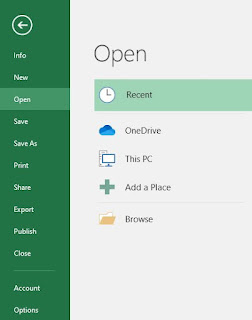

2ndstep is now we see again some options in the image above that we have here.

1). INFO

2). SAVE

3). SAVE US

4). PRINT

5). SHARE

6). EXPORT

7). PUBLISH

8). CLOSE

9). ACCOUNT

9). OPTIONS

 On the right-hand side, we see these options below in the image


1). RECENT

2). OneDrive

3). This PC

4). Add a Place

5). Browse

The fourth step is straightforward here, let's see an image below for the same.

This sheet has more than 1 million cells or rows, which is quite good or impressive, and we need to appreciate Microsoft for making such a helpful tool for users.

In the excel sheet in left side corner, we can see here we have numbers that start from 1stto 1048576 and on top, it starts in alphabets from “A” to “XFD”

That is a basic thing about an excel sheet now if we want to add any data to the sheet, we have columns and rows in it and can customize it. 

If we want to create a workbook or excel then we can do this below that we did below.

HOME


In the HOME tab, we have these many options that we can use to customize our data as per our needs. we can put our data in colour and filters or whatever we want from this HOME tab and can apply these settings to make our data better to understand and attractive too.

INSERT

We will learn here few things from this tab, which is quite simple and lovely to know.

PAGE LAYOUT
In-Page Layout

We have several options or features to use, Print command also comes under this Page Layout tab and that is also important because sometimes we need to take a print of the workbook so in that case, we can use it.

FORMULAS

In formulas, we have some functions for basically financial, text, logic, math, etc. Let’s check the image below.


DATA

In the same way, we can see the next tab named DATA   and which has many functions to use like finding duplicate values etc.

REVIEW

In this tab, we get these features as mentioned below in the image. Once we going to start working on these options, we will get to know the importance of these features and understand them too.

VIEW

In this tab, we have some features like page break and zoom options and the most important is Macros. Macro is one of the most powerful tools in MS excel and how do we use it, let s understand that now but first we see these options in the image below.

Macro:- This tool we use to make our work burden as slow as. If we do any repeated task in excel again and again then we can use this tool to record the session of the excel workbook and play it. It will complete the job, as we need as per our choice.  It works well and it’s very helpful when we have too many repeating tasks to handle in an excel workbook.

Though we have more to learn so lets discuss what we can learn from it

Basic Functions and Formulas: Data manipulation and analysis require an understanding of basic formula writing as well as fundamental functions like SUM, AVERAGE, MAX, and MIN.

Data formatting: You may improve the readability and visual appeal of your spreadsheets by learning how to properly format cells, rows, and columns.

Data Validation: By putting data validation rules into practice, errors are decreased and data accuracy is ensured by making sure that the data entered into cells satisfies predetermined requirements.

Conditional Formatting: This technique makes it simpler to spot trends and outliers in your data by enabling you to dynamically format cells according to predetermined criteria.

Advanced Functions: For more complex data manipulation and analysis, functions like IF statements, nested functions, VLOOKUP, HLOOKUP, INDEX-MATCH, and others are frequently utilized.

Data Analysis Tools: For carrying out intricate what-if analyses and optimization, Excel comes with built-in data analysis tools like Goal Seek, Solver, and Scenario Manager.

What-If analysis with data tables: Data tables let you investigate various situations by changing input values and seeing how those changes affect the output values.

Macros and Visual Basic for Applications (VBA): These two tools let you personalize Excel's features and automate tedious operations. Your productivity can skyrocket if you can create and run macros.

Data Import and Export: Working with a variety of datasets requires the ability to import data from outside sources and export data to different forms (such as CSV or text files).

Excel provides tools for recording changes, sharing workbooks, and password-protecting worksheets and workbooks in order to facilitate collaboration with others.

Database Functions: To execute computations on data contained in Excel tables or external databases, Excel has database functions including DSUM, DCOUNT, DAVERAGE, and DGET.

Excel Tips and Tricks: You may work more quickly and effectively in Excel by learning different shortcuts, productivity tactics, and tips and tricks.

Data Transformation and Cleaning: Two crucial processes in getting data ready for analysis are transformation and cleaning. Excel has functions for data transformation, duplication removal, filtering, and sorting.

Using Power Query for Data Analysis: Power Query is an effective tool for integrating, cleaning, and transforming data. Your data preparation process can be streamlined by becoming proficient with Power Query.

Power Pivot for Data Analysis: With Power Pivot, you can use big datasets to do sophisticated data analysis and build data models. Gaining knowledge of Power Pivot will enable you to create reports and analyses that are more complex.

Excel Tables: Excel tables offer a methodical approach to data organization and analysis. Sorting, filtering, and referencing data are just a few of the chores that may be made easier with an understanding of Excel tables.

Array formulae: Using array formulae, you may compute on data arrays. Gaining proficiency with array formulae will enable you to use Excel for sophisticated computations and problem-solving.

Excel's latest feature, dynamic arrays, lets formulas automatically spill over neighboring cells and produce multiple values. Comprehending dynamic arrays can enhance spreadsheet productivity by making formula writing simpler.

Excel Add-ins: By adding new features and tools, Excel add-ins increase the usefulness of Excel. Gaining proficiency in installing and utilizing Excel add-ins will increase your productivity and broaden Excel's features.

Techniques for Data Visualization: Excel has a number of tools for data visualization, such as extensive chart customisation choices, conditional formatting icons, and sparklines. You can convey findings more effectively if you know how to visualize data well.

Financial analysis tasks including financial modeling, valuation, and investment analysis are frequently performed in Excel. Acquiring the skill of using Excel for financial analysis might lead to career chances in finance.

Excel for Project Management: Gantt chart generation, resource planning, and task tracking are just a few of the project management responsibilities that Excel can handle. You can handle jobs and projects more skillfully if you know how to utilize Excel for project management.

Statistical Analysis with Excel: Excel comes with tools and built-in statistical functions to help with basic statistical analysis. Acquiring proficiency in Excel for statistical analysis can prove beneficial in domains including quality assurance, data science, and research.

Excel for Business Intelligence (BI): Excel is a useful tool for business intelligence tasks like dashboard design, interactive reporting, and data visualization. Businesses can utilize Excel for BI to get insights from their data and make wise decisions by knowing how to use it.

Excel for Academic and Educational Objectives: Excel is frequently used for tasks like data analysis, modeling, and classroom exercises in academic and educational environments. Learning Excel may help researchers, teachers, and students in a variety of professions.

These extra topics offer a more thorough grasp of the several uses for Excel by delving further into particular aspects of its functionality and application.

Microsoft Excel is like magic power that we got from Microsoft INC.

We can learn more about it and can learn all these basic functions practically.  Many people are teaching MS excel online and offline and on YouTube and anyone can take free classes on YouTube.


Some of them are providing paid classes also but this different thing so if anyone wants to learn for free, they can also do it from YouTube.

Basic MS Excel Formulas

Basic Excel 

Microsoft Excel: Basic excel is all about small or basic functions in excel. These are those functions that we usually use to do some basic work in excel like Sum, Sumif, Left and right functions, basic calculation as functions, etc. So here we will discuss the same with examples and images so that we can easily understand; what these basic functions or formulas are. So let us start to check these few basic functions. 


In Ms Excel, a formula is an expression that operates on values in a range of cells or a cell. For example, =A1+A2+A3, which finds the sum of the range of values from cell A1 to cell A3 Being essentially structured as a spreadsheet program, Microsoft Excel is incredibly ground-breaking and adaptable with regards to ascertaining numbers or tackling math and building issues. It empowers you to aggregate or average a section of numbers in a matter of moments. Here we have the best Ms excel formula. 

Aside from that, You can figure out self-multiplying dividends and weighted normal, get the ideal spending plan for your publicizing effort, limit the shipment expenses or make the ideal work routine for your representatives. This is finished by entering equations in cells.

This instructional exercise expects to show you the fundamentals of Excel capacities and tell you the best way to utilize essential functions in Excel.


  • Excel Basic Formulas
  • 10 Basic Excel functions you must know
  • Excel functions & tips 
  • The basic Ms excel formula

The equation is an articulation that figures the estimation of a cell.

 For Example, =A2+A2+A3+A4 is an equation that includes the qualities in cells A2 to A4. 

The limit is a predefined spreadsheet authoritatively open in Excel. Limits perform explicit figuring in a specific request dependent on the predetermined qualities called contentions or parameters.

For instance, rather than indicating each incentive to be summed like in the above equation, you can utilize the SUM capacity to include a scope of cells: =SUM(A2:A4) 

You can find all open Excel works in the Function Library on the Formulas tab:


Basic ms excel formula

We call excel formulas to excel functions too. For inserting one into an excel file, highlight a cell in which we want to put formula or function then click the far-left icon, insert the function to use formulas and what all they do and the browsing window will look like this we have here below.


Basic ms excel formula

Want a more sorted experience then use any of the icons we have here as highlighted and such as any functions or formulas

Presently,  how about we complete a more profound plunge into probably the most critical Excel recipes and how to play out everyone in normal circumstances.

  • SUM
  • COUNT
  • COUNTIF
  • TRIM
  • MAX
  • MIN

SUM - This formula is one of the basic excel formulas which starts with = followed by a specific text tag denoting the formula which you want to use in excel.  
And FORMAT would be =SUM(value1,value2, etc.)


For example, an image has been attached here:-

Basic ms excel formula

Now in the image above see the values D1 to D9 are selected for getting the sum and finally, we used this formula and got a total of the selected area. That show we use the SUM formula in Ms Excel.


COUNT - It gives a total number of a selected range of any specific data. It works like the SUM equation yet gives an alternate outcome as we need from utilizing it. Let us check here in the image below.

Basic ms excel formula

Values, B2 to B9 are selected under a range for getting a total number and we got it. That show this COUNT function works in Ms Excel.


COUNTIF – We use this function to check the total count of the selected row or column with a condition. Let us check the example here to understand it in a better manner.

Example: Let's suppose we have a column from A2 to A12 and in this column, we have some names of people however some names are written as per repetition then how would we check if we would like to get the exact right number or count of any repeated name in this selected or ranged column? Check the image here below.

Basic Excel

In this case, we are going to use the COUNTIF function that helps us to check the right count of that name that has been used in the column multiple times. Here we also have a video to understand it below. Let us check this out.


Trim- This function removes the extra space from texts in cells. On other hand, we can clean extra space from text in cells in any row or column.

MAX- We use this function in excel to check the maximum number or value in any selected row or column. If we have some data in any column from 100 to 1000 (A1 to A10) we use this function to check the highest value in the ranged or selected area However, we have to remember this, that we can only use this function in excel to check the numerical data in any row or column, not in texts or text formats.


How to learn advanced excel free.

Best Advanced Excel functions
Advanced Excel 

Advanced excel has a simple meaning of all features and functions of Microsoft Excel is used by users to handle large calculations and data processing. Large data analysing and solving big issues related to any data in Excel. Microsoft Excel is a champion among the least demanding and weighty programming applications open out there.


Now we will discuss advanced excel in detail but before proceeding let s understand what is basic excel also.

Basic excel consists of some of the basic functions or formulas in excel Now we used the word basic so it does not mean that basic excel is nothing or not needed to learn. Basic excel has also an important role because if we do not understand basic steps or functions in excel then, of course, we will have an issue understanding advanced excel.

Basic Excel


Now as we said basic excel is also important to learn so here we will add some basic functions first to understand.

Basic functions consist of those functions that we can see below. Let us have a look here.

Sum: This function is very nice as we can use it to add the numbers as a sum means we can add any columns or rows that consist of numbers.

Count: We can use this function easily to count the cells or rows if there is data in cells.

For example.


If A1: A10 =Count(A1: A10), If we mention any numbers in cells, would be counted except text in cells. This means if we mention numbers in cells those would be counted but if we mention texts in cells they will not be counted. It gives a final result of the count function based on numbers in cells.


Count Function

This is called the COUNT function in excel.

Average: This function counts the cells and calculates the average of the total cells that consists of numbers not texts, Let us take an example here.

If we mention any numbers in cells in rows or columns like this below.

A1: A10 = Average(A1: A10)

This function will only calculate the cells where numbers are mentioned in the data and if we mentioned some texts in there then the text will be ignored.


Average Function

 Now we have seen that in the image above all data has been calculated as per the Average function and the outcome is 537 finally which is an average of the total data that we have in the above cells in excel. Also, we can see texts in some cells which were ignored by this average function.

Though there are many basic functions in excel which are very important to learn before we go to an advanced level in excel. Now here we will discuss advanced excel with formulas and examples. 


Advanced Excel Topics
  1. Pivot Table & Reporting
  2. Pivot Charts
  3. VBA & Macros
  4. Conditional Formatting
  5. Data Validation
  1. Creating a Dashboard in Excel
  2. Advanced Vlookup
  3. Advanced Hlookup
  4. Advanced Excel tricks
  5. Data Tables
  1. Tables & Formatting
  2. Index+Match
  3. Formula Auditing
  4. Array Formulas
  5. Sumifs
When we talk about Advanced Excel then we must say that if anybody knows about advanced excel then he or she feels very easy to handle any kind of data processing. Advanced excel simply makes people smart because when you learn it and you can crunch the data smartly.


If we talk about even one of the advanced excel functions which is Conditional Formatting gives an easy solution to work as per any data conditions. With help of this feature, data can be highlighted with conditions needed in excel.

If Function
Meaning of IF Instruction: According to Microsoft Excel, IF articulation is characterized as a capacity that "checks whether a condition is met, returns one esteem assuming True and another esteem assuming False".


Advanced Excel Videos
Advanced Excel- IF function 

The best other feature which is mentioned above is PIVOT-TABLE which is being used in Ms excel to acknowledge any huge data and convert that into a summarizing way which will be an easy way to check and acknowledge.

Now when we talk about PIVOT-CHART so, of course, we should know about Pivot-Table as Pivot-Chart will be used after putting the Pivot-Table function in the Excel sheet. 

When this Pivot-table is ready then we can simply create a Pivot-Chart by using an INSERT tab and create a Pivot-Chart as it is there in the drop-down option OR When you will click anywhere in the chart then it will easily appear as a chart ribbon.

Data Tables – It helps users to analyse a massive amount of data for a solution.

Vlookup helps users to find any particular value or text in any data Vertically. Which is a very usual and important function nowadays. Even MIS users also need it so they learn it and go with advanced lookup too then.


What is Advanced Vlookup?
When we use Vlookup with multiple conditions in excel, Called advanced Vlookup. Nothing is different as it is just a way of handling huge data.

HLOOKUP in EXCEL:- It helps users to find the values Horizontally and Advanced Hlookup is handling huge data with multiple conditions in excel.


When we want to add numbers in the range like starting from 01 to 150 or any number with one criterion, Called Sumif in excel. When we add multiple criteria then it is called the SUMIFS function in excel.


Data Validation is also one of the best advanced excel functions as it helps users to put conditions in data like as per numbers or texts. For example:- If we need numbers from 01 to 250 then we can put this condition so that numbers will appear above 250 in the column or row accordingly.

Question:- How to use the Sum function in excel called a basic feature of ms excel?
Answer:- The syntax is as follows:

=SUM(B2: B7)

Best Advanced Excel functions
Advanced Excel -  Sum Function

Now Dashboard in excel is something the most important and interesting functions also in Ms excel. It gives a complete solution to summarize the data in a basic and dynamic way. It would be created with Pivot-Table and then can be converted into charts or basic Tables in excel.